
Handleiding
Je bekijkt pagina 26 van 68
5
19
navigating the on-SCreen Menu
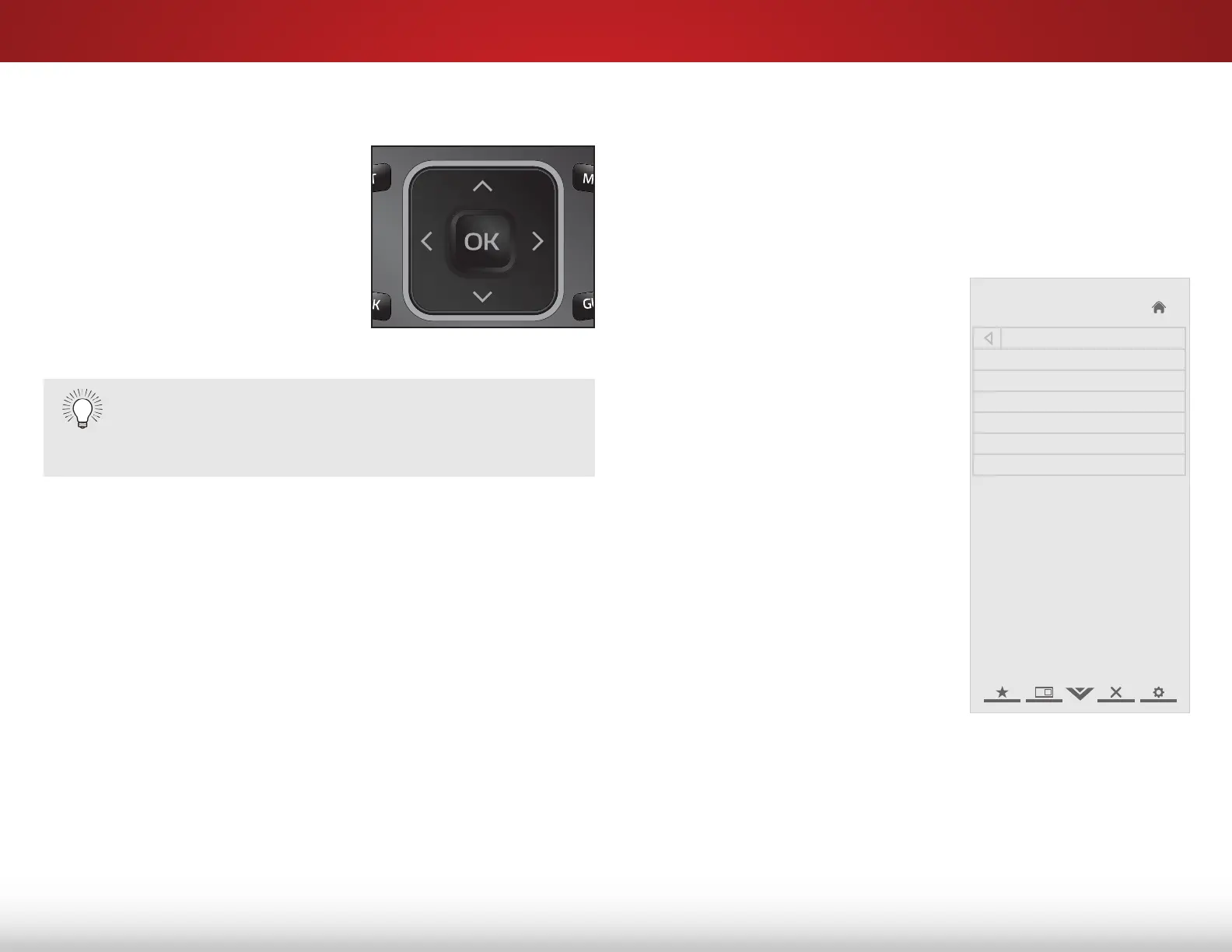
To open the on-screen menu,
press the MENU/OK button on the
remote.
Use the Arrow buttons to highlight
a menu option, and press the
MENU/OK button to select that
option.
While navigating the on-screen menu, you can press
the BACK button at any time to return to the previous
menu screen. The EXIT button will close the on-screen
menu.
Changing the input SourCe
External devices such as DVD players, Blu-Ray Players, and video
game consoles can be connected to your TV. To use one of these
devices with your TV, you must first change the input source in the
on-screen menu.
To change the input device:
1. Press the MENU button on the
remote. The on-screen menu is
displayed.
2. Use the Arrow buttons on the
remote to highlight the Settings
icon and press OK. The TV
Settings menu is displayed.
3. Use the Up/Down Arrow
buttons on the remote to
highlight the input source and
press OK. The Input Source
Selection menu is displayed.
4. Use the Up/Down Arrow
buttons on the remote to
highlight the input source you
wish to display and press OK.
Help
VIZIO
Network
Sleep
Timer
Input CC
ABC
Audio
Wide
Normal
Picture
Settings
PanoramicWide Zoom
2D 3DExit
Input Source Selection
TV
Comp/AV
HDMI-1
HDMI-2
HDMI-3
HDMI-4
Bekijk gratis de handleiding van Vizio E500d-A0, stel vragen en lees de antwoorden op veelvoorkomende problemen, of gebruik onze assistent om sneller informatie in de handleiding te vinden of uitleg te krijgen over specifieke functies.
Productinformatie
| Merk | Vizio |
| Model | E500d-A0 |
| Categorie | Televisie |
| Taal | Nederlands |
| Grootte | 9517 MB |
Caratteristiche Prodotto
| Kleur van het product | Zwart |
| Gewicht verpakking | 16422 g |
| Breedte verpakking | 1189 mm |
| Diepte verpakking | 150 mm |
| Hoogte verpakking | 815 mm |


