
Handleiding
Je bekijkt pagina 21 van 24
21
macOS
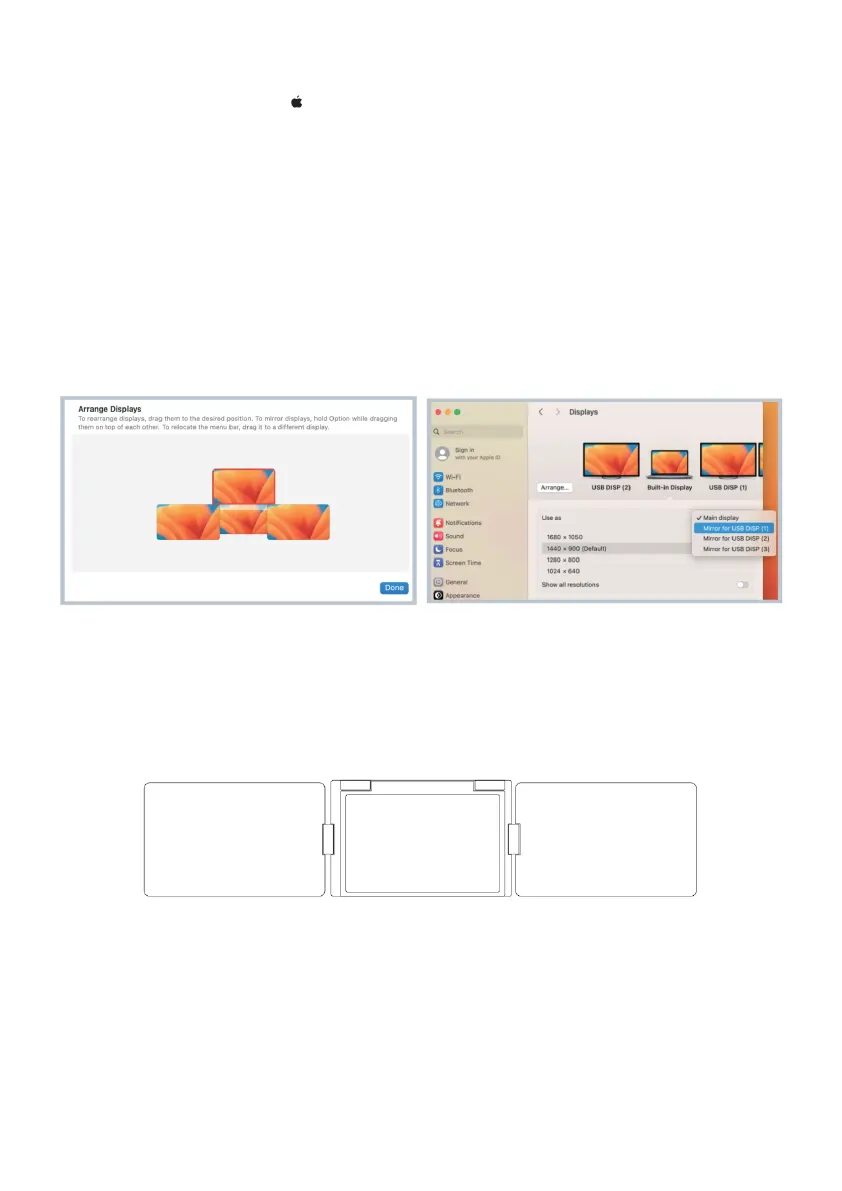
1. Open Displays Settings ( > System Setting > Displays).
2. Click ‘Arrange Displays’ from the display menu.
3. Click each monitor icon to identify which screen shows a red frame.
4. Drag the screen icons to align them with the corresponding screens displaying the red
frame.
5. If screens display different content, select one of the displays and click ‘Use as,’ then
choose ‘Mirror for xx’ to synchronise the content across screens.
6. To adjust the zoom, select a resolution from the menu. For additional options, click
‘Show all resolutions.’
Auto Sensing
The top screen features an automatic sensing function. When flipped down, the displayed
content will automatically rotate.
Top Screen
Bekijk gratis de handleiding van Kogan KAMN14QTFDEA, stel vragen en lees de antwoorden op veelvoorkomende problemen, of gebruik onze assistent om sneller informatie in de handleiding te vinden of uitleg te krijgen over specifieke functies.
Productinformatie
| Merk | Kogan |
| Model | KAMN14QTFDEA |
| Categorie | Monitor |
| Taal | Nederlands |
| Grootte | 2929 MB |


